
Why Use Document Attachments in AccuBooks?
Adding supporting documents to your accounting entries helps you:
✅ Keep all transaction proofs in one place
✅ Stay ready for audits or BIR compliance checks
✅ Improve accuracy and accountability in your financial records
✅ Make reviews and approvals faster
This feature supports common file types, including PDF, images (JPG/PNG), and CSV documents, making it versatile for different business needs.
Step‑by‑Step: How to Attach Documents in AccuBooks
Here’s how you can attach files to your transactions inside the system:
1. Open the Module Where You Want to Attach Documents
Depending on your transaction type — e.g., Cash Receipts, Cash Disbursement, Sales, Collections, Purchases, Payments — open that module in your AccuBooks account.
2. Create or Open an Existing Transaction
- For a new transaction, fill in all required fields first.
- To attach a file to an existing entry, open it from the list or search for it in the module.
3. Look for the Attachments Field
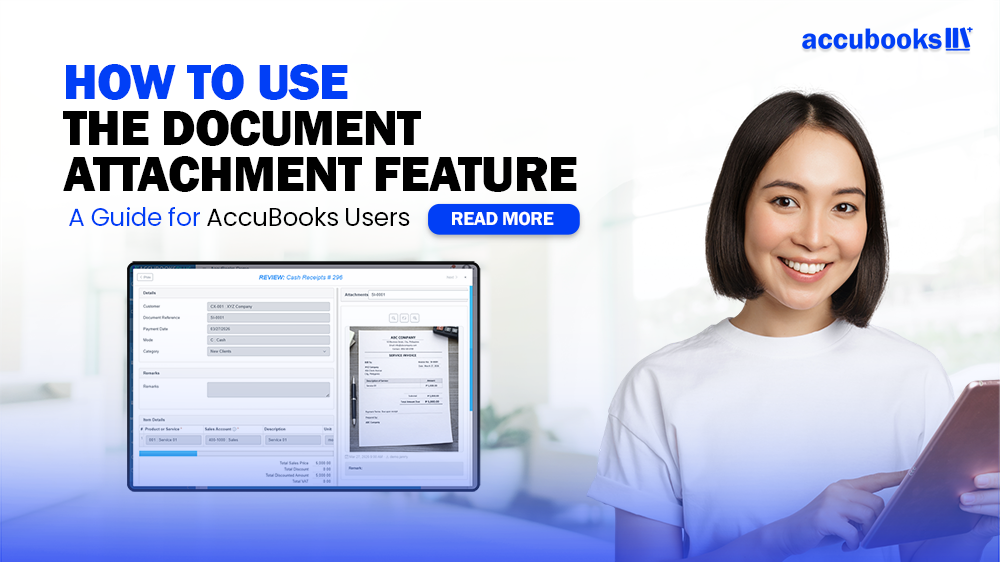
Inside the transaction screen, you will see an “Add Attachment” option. Click this to start uploading your supporting files.
4. Upload or Choose File to Attach
A file explorer window will open. You can then:
- Choose the file you want to attach
- Upload supporting photos, invoices, receipts, contracts, or scanned files
Accepted formats typically include PDF, JPG, PNG, CSV, ideal for accounting reference purposes.
5. Add a Description or Remark (Optional)
After attaching the document, you may add a short note or description — e.g., “Deposit Slip for March 12” or “Supplier Invoice Copy” — to make it easy to identify later.
6. Save or Submit Your Transaction
After uploading your document:
- Click Save to make it part of the record
This ensures the attachment stays linked with that transaction for future review and monitoring.
Viewing or Managing Your Attachments
Once your supporting document is added:
✅ Click the attachment icon on the saved transaction to view the file
✅ You can download or delete attachments if needed
Tips for Best Practice
- Use clear file names like “Invoice‑1234‑AcmeCorp.pdf” for faster search and retrieval
- Attach all supporting documents immediately to avoid missing information
- Keep attachments organized by type and date for audit readiness
The AccuBooks document attachment feature transforms your accounting system into a centralized hub for both numbers and supporting proof. This not only improves efficiency but also ensures your records are complete and compliant with standard accounting practices — crucial for Philippine MSMEs and growing enterprises.
Start using this feature today to keep your financial documents organized, accessible, and audit-ready!
Leave a comment